VIOFO Dashcam
- 3.2
- Rating
- 10.00K
- Installs
- Free
- Price

 Analysis by App-foxy
When I use a dash cam, I care less about flashy extras and more about one practical job: getting the camera ready and retrieving the recording without turning a simple drive into a technical project. That is the angle that makes VIOFO Dashcam interesting. Developed by VIOFO Ltd, this free Android app belongs to the Auto & Vehicles category and is designed to work as the control point for a VIOFO dash cam, especially when I need to adjust the camera or download video and photos.
That sounds straightforward, but it changes how useful a dash cam feels day to day. The camera may be mounted behind the mirror, tucked into a corner of the windshield, or positioned where reaching its buttons is awkward. Using a phone instead can make setup and file handling much more convenient. In my view, the most important benefit is reducing the distance between the camera and the evidence it records: I can work with the device from the driver’s seat rather than treating the dash cam as a sealed box.
The app is free and suitable for Everyone, with a minimum operating-system requirement of Android 7.0. Its current version is 2.2.01, and it has passed the ten-thousand-install mark. Its average score is 3.2 from roughly seventy ratings, with around seventeen written reviews, so the public response looks mixed rather than universally enthusiastic. I would read that as a reason to approach it as a useful companion tool, not as a polished standalone driving platform.
You May Also Like

 Blood Strike: 2.5 Anniversary
Blood Strike’s Loadouts Turn Every Drop Into a Tactical Gamble
A close look at Blood Strike’s custom loadouts: how fast access to signature weapons reshapes its battle royale rhythm, rewards preparation, and narrows the gap between fights.

 Pandora - Music & Podcasts
Pandora’s Music Is Easy to Start, but Harder to Recover
Pandora’s strength is its low-effort path from a seed to a station. Its weak spot is how much confidence it asks you to place in connection, setup, and quiet recovery.

 8 Ball Pool
8 Ball Pool Is Built on Rivalries, Rematches, and Routine
A close look at the rivalries, rematches, shared routines, and unanswered safety questions that turn a quick pool match into a persistent mobile community.

 Samsung Music
Samsung Music’s Quiet Strength Is Playing What You Already Own
Its reach comes less from spectacle than from dependable access to a personal library. That simplicity is both the app’s strongest retention engine and its ceiling.

 AccuWeather: Weather Radar
AccuWeather Review: A Quick, Clear Forecast for Everyday Decisions
For everyday plans, the best forecast is the one you can understand quickly. AccuWeather makes rain timing, radar, and local conditions easy to act on, with a few trade-offs.

 Hill Climb Racing
Why Hill Climb Racing Still Turns Crashes Into One More Run
A tiny car, a bumpy hill and one more upgrade: Hill Climb Racing keeps resurfacing because its simple chaos makes every near-miss feel personal.
More From Our News Desk
View All News


Controlling the camera is the real reason to install it
The central capability is remote interaction with a compatible VIOFO dash cam: setting the camera and downloading recorded video or still photos. I find that much more valuable than a generic dashboard display because it addresses two moments when dash cam ownership can become frustrating. The first is initial setup, when the camera needs to be positioned and adjusted. The second is after an incident or memorable drive, when I need to find and move a particular file quickly.
Without a companion app, I would normally depend on the camera’s physical controls, a small built-in screen if the model has one, or a memory-card workflow. Those methods can work, but they are not equally comfortable. Buttons are less convenient when the camera is already installed. A memory card requires removing storage, finding a reader, and opening files on another device. The phone-based approach is more immediate, provided the connection behaves properly and the dash cam is supported.
I also like the separation between driving and reviewing. A dash cam should remain focused on recording while I am on the road. The app becomes useful before departure or after parking, when I can make changes and inspect footage without repeatedly touching the camera itself. That makes it especially relevant for people who install a camera once and then want a simpler way to manage it afterward.
What I would do before the first drive
I would begin with the car parked, the phone charged, and the dash cam powered in its normal position. I would not try to configure everything while stopped briefly at a traffic light or while preparing to leave in a hurry. The best use of this app is deliberate setup: connect to the camera, check the view, adjust the relevant settings, and then confirm that the camera is ready before driving.
That workflow matters because a dash cam’s physical position affects what the recording shows. If the lens is angled too high, too low, or off to one side, the footage may be less useful even though the camera is technically recording. A phone interface can make this adjustment less irritating than reaching toward the windshield and guessing from a tiny display. I would treat the app as a setup aid first, not merely a file browser.
There is also a practical habit I recommend: make a short test recording after installation and download it before relying on the camera. This checks more than image quality. It confirms that the app can communicate with the camera, that the phone can receive the file, and that I understand where the saved copy goes. Discovering a connection or transfer problem at home is far better than discovering it after an accident.
Downloading footage is more useful than it first appears
The ability to download video and photos is where the app can save real time. If I need to show a short clip to an insurer, a repair shop, a family member, or the police, I would rather create a phone copy than remove the camera’s storage immediately. I can also preserve a useful file before it becomes difficult to locate among newer recordings.
My preferred workflow would be selective rather than indiscriminate. I would identify the approximate time of the event, preview the relevant recording, and transfer only the clips that matter. This keeps the phone’s storage from filling with ordinary journeys and makes later searching easier. For a minor collision, a sudden braking event, or a close call, that focused approach is much more practical than copying an entire card.
A second useful habit is to rename or organize the downloaded files as soon as I know they are important. The app’s job is to move the footage; my phone’s file organization is what makes that footage easy to find later. I would create a simple folder for dash cam evidence and separate everyday clips from incident clips. That small step prevents the common problem of having a recording somewhere on the phone but not knowing which file is the one I need.
Transfer speed and reliability can affect this experience. Video files are not always small, so I would avoid assuming that every clip will be available instantly. I would also keep the phone close to the camera during a transfer and avoid switching between several demanding tasks. If I needed a large archive, a direct memory-card reader or computer would probably be more efficient. The phone workflow is strongest when I need a few specific files, not when I want to move an entire collection.
A realistic everyday scenario
Imagine that I park after a routine commute and remember that another vehicle cut across my lane earlier in the trip. I do not need every minute of the drive. I need the section around that moment, and I want to preserve it before normal recording cycles make it harder to locate. With VIOFO Dashcam, I can approach the camera through the phone, find the relevant recording, and download the useful video or photo while the details are still fresh in my mind.
That scenario shows why the app’s value is not limited to dramatic crashes. It can help with a disputed parking incident, a road hazard, an unusual traffic situation, or a scenic moment worth saving. The key advantage is the shorter path from “the camera recorded something” to “I have a usable copy on my phone.” For many owners, that is the point at which a dash cam becomes genuinely practical rather than merely reassuring.
Where the experience can become frustrating
The same phone connection that makes the app convenient can also be its main source of friction. I would not expect it to behave like a normal cloud video service where recordings are always available from anywhere. The app is a companion for the camera, so I would plan to use it near the vehicle and treat the connection as part of the setup process. If I needed remote access while away from the car, this would not be my first choice.
Another trade-off is that the app’s usefulness depends on the particular VIOFO camera. Installing it does not turn an unrelated dash cam into a connected device. Before buying or relying on it, I would check compatibility with the exact camera model and confirm that the phone meets the Android requirement. This is one of the most important decisions for a potential user because a smooth interface is irrelevant if the hardware cannot work with it.
I would also avoid judging the app solely by how attractive its interface feels. A dash cam utility has a narrower purpose than a general media app. Its success depends on whether it connects when needed, exposes the settings I need, and transfers the selected files without unnecessary effort. The modest public rating suggests that some users encounter enough inconvenience to affect their overall impression. I would therefore keep expectations practical: this is a functional tool for a specific VIOFO setup, not an all-purpose driving companion.
Phone storage is another consideration. Downloading several high-resolution recordings can consume space quickly, especially if I forget to remove routine clips after checking them. I would transfer only important footage and periodically clear duplicates. For long-term evidence storage, I would keep a second copy somewhere dependable rather than treating the phone as the only archive.
There is also a privacy angle in everyday use. Dash cam recordings can include faces, vehicle plates, conversations, and locations. Once I download a clip to my phone, it becomes easier to share accidentally through normal gallery or messaging habits. I would review a video before sending it and avoid distributing more of the journey than necessary. The app makes access easier, which is helpful, but that convenience also makes careful handling more important.
When another workflow is better
If I regularly need to process many hours of footage, I would prefer a computer and a memory-card reader. A larger screen is better for comparing clips, checking timestamps, and storing an organized archive. The app is more appealing for quick retrieval: one event, a few images, or a short recording that I want to save immediately.
If I want a dash cam that sends alerts, stores footage remotely, or provides a broader connected-car service, I would look for hardware and software built around those functions. VIOFO Dashcam is centered on camera setup and local downloading. That focus is a strength when I want a simple companion for a VIOFO camera, but it is a limitation if my expectations extend to remote monitoring or a complete vehicle-management system.
I would also skip it if I am not using a compatible VIOFO dash cam. There is little reason to install a camera-specific utility just to browse its menus without the matching hardware. Likewise, people who never adjust their camera and are comfortable removing a memory card may gain less from it. The strongest case is for owners who value quick access and do not want to handle the camera or storage manually every time.
Who gets the most value from it
The best fit, in my opinion, is a driver who has already chosen a VIOFO dash cam and wants a more comfortable way to configure it. New owners benefit during installation because viewing and adjusting the camera from the phone can be easier than working with controls mounted near the windshield. Experienced owners benefit when they need a specific recording without interrupting the camera’s physical setup.
It is also a sensible tool for people who occasionally need to share evidence. A delivery driver, commuter, rideshare driver, or parent who spends a lot of time on the road may appreciate being able to preserve a clip soon after an event. The app does not replace careful driving or proper file backup, but it reduces the number of steps between recording and review.
Casual users should consider how often they will actually download footage. If the answer is “almost never,” the app may remain installed but rarely used. That is not necessarily a problem because it is free, but it means the decision should be based on the camera’s overall value rather than on this utility alone. The app is most convincing when its specific capability solves a recurring annoyance.
The Everyone age rating makes it broadly accessible, and the Android 7.0 minimum means it is aimed at a wide range of Android phones rather than only recent devices. Still, compatibility is more than an operating-system number. I would check the camera model, keep the phone reasonably prepared for file transfers, and test the connection before an urgent situation arises. Those three steps are more important than simply installing the application.
My practical verdict
After looking at what this app is meant to do, I see VIOFO Dashcam as a focused companion rather than a complete driving platform. Its strongest idea is simple: use the phone to make camera setup and footage retrieval less awkward. That matters because the value of a dash cam is not only in recording; it is also in being able to access the right recording when it counts.
I would recommend it to VIOFO camera owners who want a convenient local workflow and are willing to spend a few minutes testing the connection and organizing saved clips. I would be more cautious for anyone expecting cloud access, advanced connected-car features, or effortless handling of a large video archive. In those cases, a different hardware ecosystem or a computer-based workflow may suit better.
With a free price, broad age suitability, and a clear purpose, it is easy enough to try if the camera is compatible. My final view is positive but measured: install it for the practical bridge between the windshield-mounted camera and the phone in your hand, not because it promises to transform the entire driving experience. When that bridge works reliably, it can make a VIOFO dash cam noticeably easier to live with.
FAQs for VIOFO Dashcam
01What is VIOFO Dashcam, and what can the app do?
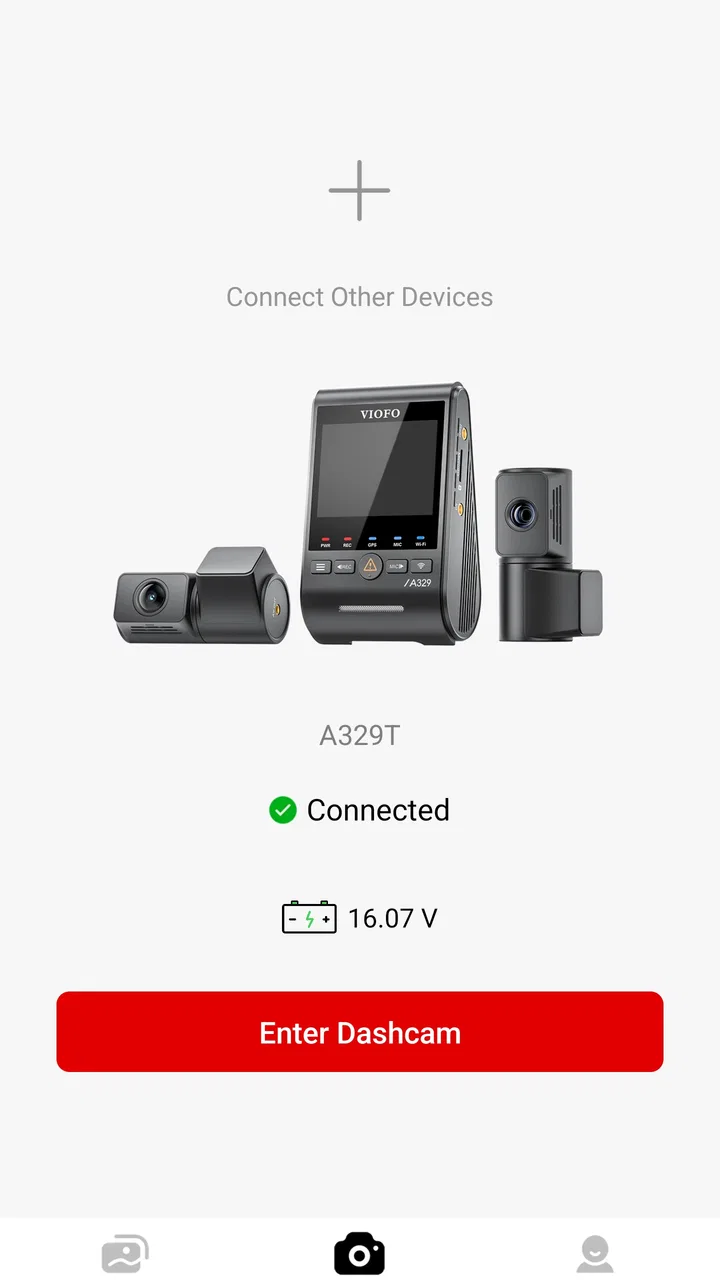
VIOFO Dashcam is the companion app for compatible VIOFO car cameras. After connecting your phone to the dashcam’s Wi-Fi network, you can preview the camera view, change recording and video settings, browse saved clips, download footage, and share files. The app is mainly designed for local control and file management rather than cloud-based remote monitoring, so its usefulness depends on having a supported VIOFO dashcam installed.
02Which VIOFO dashcams are compatible with the app?
Compatibility depends on the exact VIOFO camera model and, in some cases, its firmware version. Many VIOFO Wi-Fi-enabled dashcams work with the app, but older or basic models may not support every feature. Before downloading, check the camera’s manual, product page, or the app listing for the current compatibility information. If the dashcam cannot create a Wi-Fi connection, the app may offer little or no functionality.
03How do I connect VIOFO Dashcam to my Android or iPhone?
First, turn on the dashcam’s built-in Wi-Fi, then open your phone’s Wi-Fi settings and connect to the network created by the camera. Return to the VIOFO Dashcam app to access the live view and saved recordings. Because the connection is local, your phone may warn that the network has no internet access. This is normal, although mobile data or automatic network switching can sometimes interrupt the connection.
04Can I download and share dashcam videos with VIOFO Dashcam?
Yes, the app generally lets you browse recordings stored on the dashcam’s memory card and transfer selected files to your phone. Once downloaded, videos can usually be viewed, backed up, or shared through other apps. Transfer speed depends on the camera, phone, file resolution, and Wi-Fi connection. High-resolution or long recordings can take noticeable time and consume considerable storage, so it is wise to review available space before copying many clips.
05Does VIOFO Dashcam require a subscription or provide cloud recording?
The companion app is primarily intended to connect directly to a compatible VIOFO dashcam, adjust settings, view footage, and download recordings. It is not generally a replacement for a cloud-connected security service, and features can vary by camera model. A memory card is normally required for recording, while parking-mode operation may also require suitable hardwiring equipment. Check the specific dashcam documentation for storage, power, and optional accessory requirements.
Pros
- Supports high-resolution recording for clearer license plate details.
- Offers loop recording so storage is managed automatically.
- Parking surveillance can help monitor the vehicle while parked.
- Compatible with several VIOFO camera models and accessories.
- Video files can be reviewed and downloaded directly from the app.
Cons
- Wi-Fi connection may disconnect during video transfers.
- Some features require a compatible VIOFO dashcam and firmware.
- Large high-resolution videos can use considerable phone storage.
- The interface may feel dated compared with newer camera apps.
- Remote viewing and downloads can drain the phone’s battery quickly.

VIOFO Dashcam
Gallery